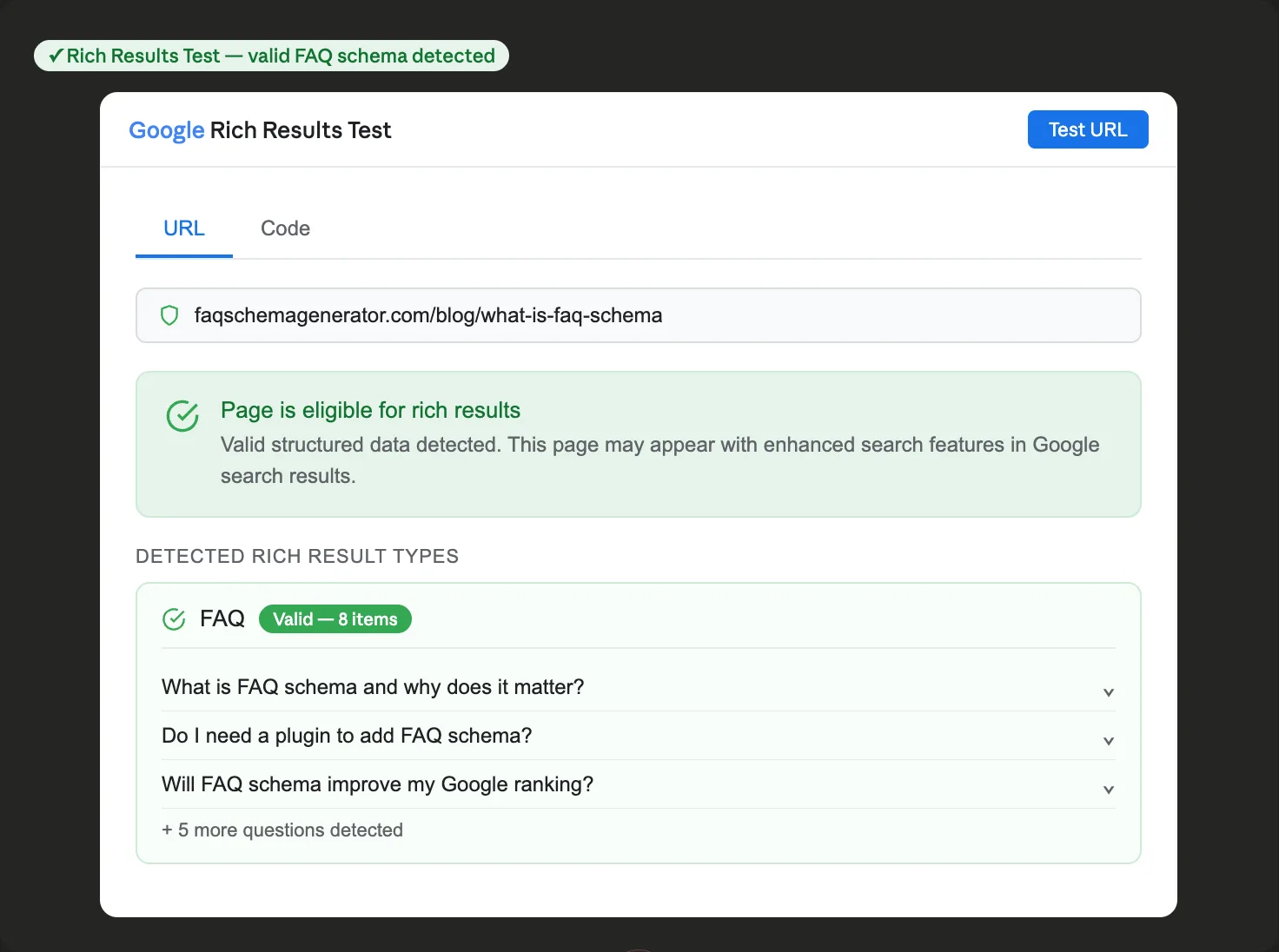
Adding FAQ schema to your WordPress posts is only half the job. Before Google can display your content as rich results in search, it needs to read your structured data correctly. The only reliable way to confirm that is to test it yourself.
Google provides a free tool specifically for this purpose: the Rich Results Test. It takes less than two minutes to use, catches errors that are otherwise invisible, and tells you definitively whether your FAQ schema is valid. Here's exactly how to use it and what to do with what you find.
What the Rich Results Test Actually Does
The Rich Results Test is a Google-built validator that reads your structured data the same way Googlebot does. You give it either a URL or a block of raw code, and it returns a clear report: whether your markup is valid, which rich result types it qualifies for, and any errors or warnings that need attention.
For the FAQ schema specifically, the tool will tell you whether Google can detect your FAQPage markup, whether it's formatted correctly, and whether the questions and answers in your schema match what's visible on the page — one of Google's core requirements for FAQ rich results.
Two Ways to Test: URL vs. Code
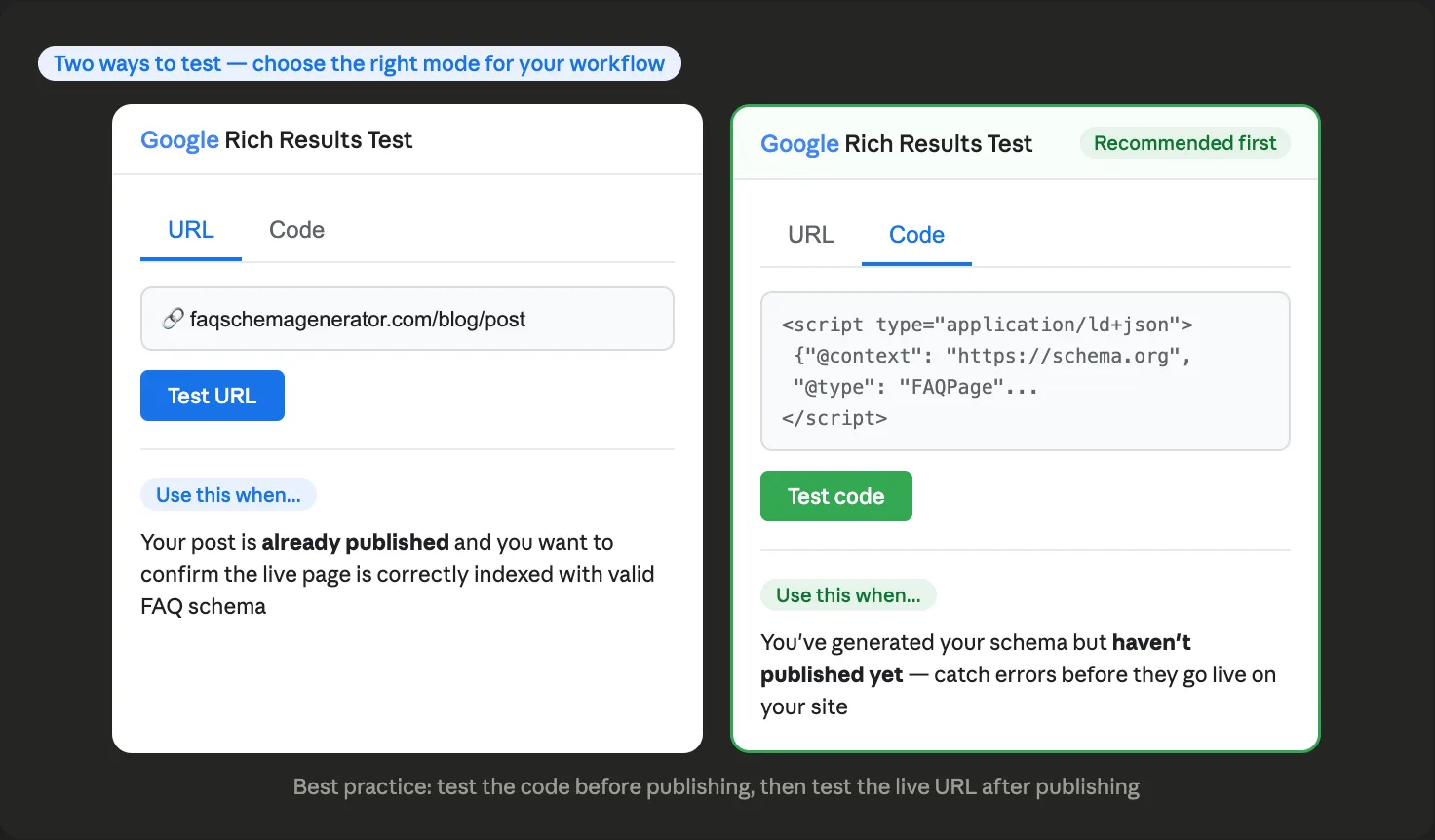
The Rich Results Test offers two testing modes, and each serves a different purpose in your workflow.
URL testing is for pages that are already published. You enter your post's URL, and the tool fetches and analyzes the live page, exactly as Googlebot would. This is the test to run after publishing to confirm everything is working correctly on the live site.
Code testing is for the schema you've generated but haven't published yet. You paste your raw JSON-LD directly into the tool and test it before it goes live. This is the more valuable mode for catching errors before they affect a published post.
The smartest workflow is to use both: test your code before publishing, and test the live URL after publishing to confirm the code was implemented correctly in your post.
Step-by-Step: Testing Your FAQ Schema Code Before Publishing
Step 1: Generate your FAQ schema markup. If you're using faqschemagenerator.com, enter your questions and answers and export the JSON-LD code. Copy the entire block, including the opening <script type="application/ld+json"> tag and closing </script> tag.
Step 2: Go to search.google.com/test/rich-results in your browser.
Step 3: Click the "Code" tab at the top of the testing interface. This switches from URL testing to code testing mode.
Step 4: Paste your entire JSON-LD block into the code editor field.
Step 5: Click "Test code." The tool will process your markup and return results within a few seconds.
Step 6: Review the results. A valid FAQ schema will show a green checkmark and display "FAQ" under the detected rich results section. You'll also see a preview of how your questions would appear in search results.
Understanding the Results: What Green, Yellow, and Red Mean
The Rich Results Test uses a three-level status system that's worth understanding before you see it for the first time.
Green — Valid: Your FAQ schema is correctly formatted and eligible for rich results. No action required beyond publishing your post.
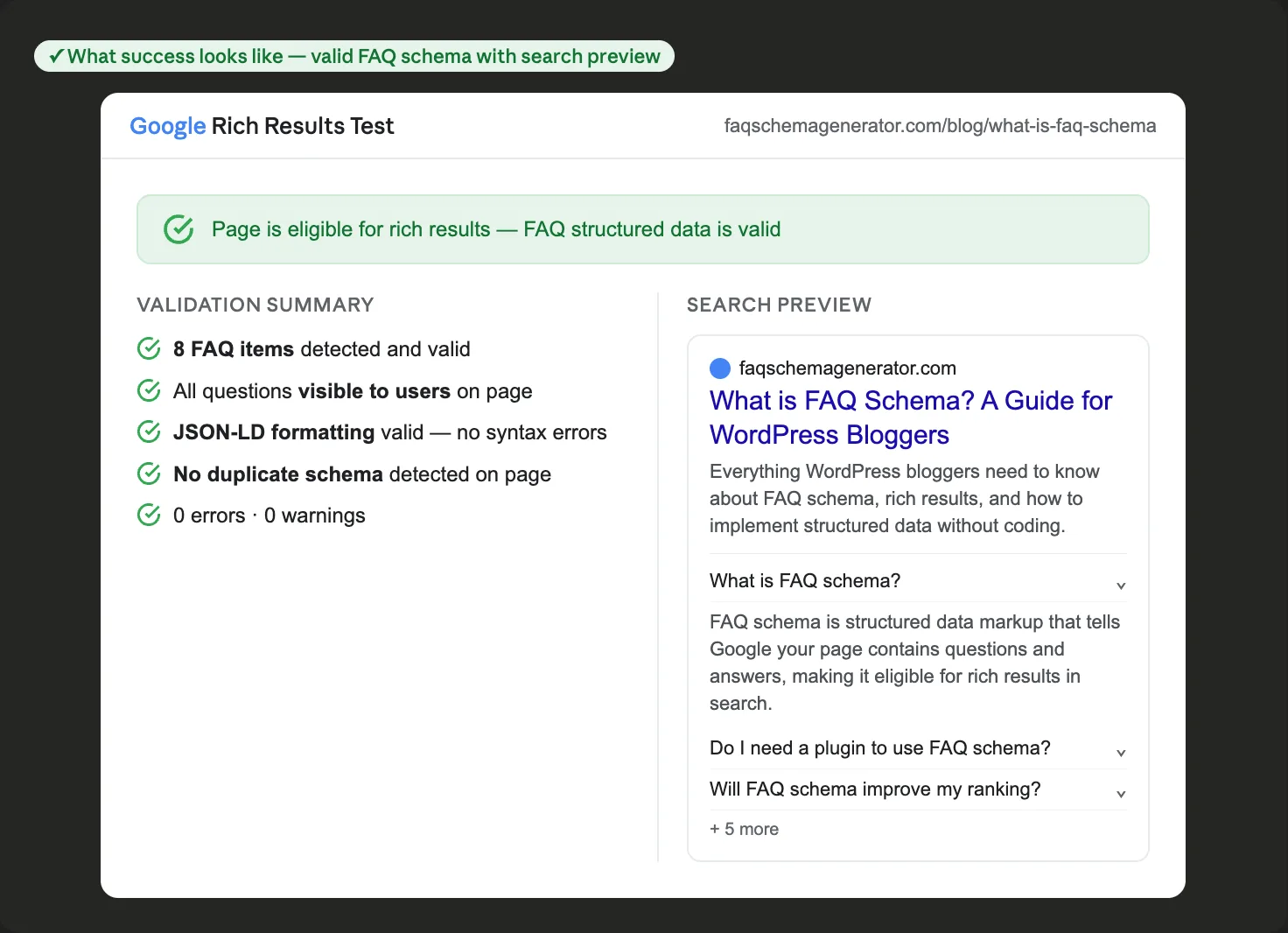
Yellow — Warnings: Your schema is technically valid and may still generate rich results, but there are recommended improvements. Common warnings include answers that are very short, or schema properties that aren't required but are recommended for better performance. Warnings are worth addressing but won't prevent rich results.
Red — Errors: Your schema has formatting problems that prevent Google from reading it correctly. Common errors include invalid JSON syntax (a missing comma or bracket), required fields that are missing, or content mismatches between the schema and the visible page content. Errors must be fixed before your markup will work.
Step-by-Step: Testing a Published URL
Step 1: Make sure your post is published and publicly accessible — the URL test won't work on password-protected or draft posts.
Step 2: Go to search.google.com/test/rich-results.
Step 3: Confirm the "URL" tab is selected (it's the default).
Step 4: Enter your post's full URL, including https://, and click "Test URL."
Step 5: Wait for the tool to fetch and analyze your page. This typically takes 10–20 seconds.
Step 6: Review the results the same way you would for code testing. If the live URL shows errors that your code test didn't, the issue is likely in how the schema was pasted into your WordPress post — a common problem is that the Custom HTML block strips or alters characters when the post is saved.
Common Errors and How to Fix Them
Missing field 'acceptedAnswer'
This means one of your FAQ items has a question without a corresponding answer in the JSON-LD. Check your code for any answer fields that are empty or missing entirely.
Either 'name' or 'text' should be specified
A required field in one of your FAQ items is empty. This usually means a question or answer field was left blank when generating the schema.
Unparseable structured data
This is a JSON syntax error — a formatting problem in the code itself. A missing comma, an unmatched bracket, or a special character in your text is the usual cause. If you used an FAQ schema generator, re-export the code and check for any manual edits that may have introduced an error.
Items not visible to users
Google detected FAQ schema markup that references questions or answers not visible in the page's readable content. Make sure your FAQ section is present and visible in the post body, not hidden by CSS, JavaScript, or a collapsed accordion element.
After Validation: Requesting Indexing in Search Console
Once your FAQ schema passes the Rich Results Test, the final step is making sure Google crawls your updated page promptly. In Google Search Console, go to the URL Inspection tool, enter your post's URL, and click "Request Indexing." This prompts Google to crawl your page sooner than its regular schedule and begin evaluating your markup for rich results.
Rich results don't appear instantly — it typically takes a few days to a few weeks after indexing for FAQ rich results to start showing for your posts. You can monitor the status of all your pages with FAQ schema in Search Console under Enhancements > FAQ.
Making This Part of Your Workflow
The most effective approach is to build testing into your publishing process rather than treating it as an optional extra. A simple two-step habit — test the code before publishing, test the URL after publishing — catches errors when they're easiest to fix and ensures every FAQ schema you add has the best possible chance of earning rich results.