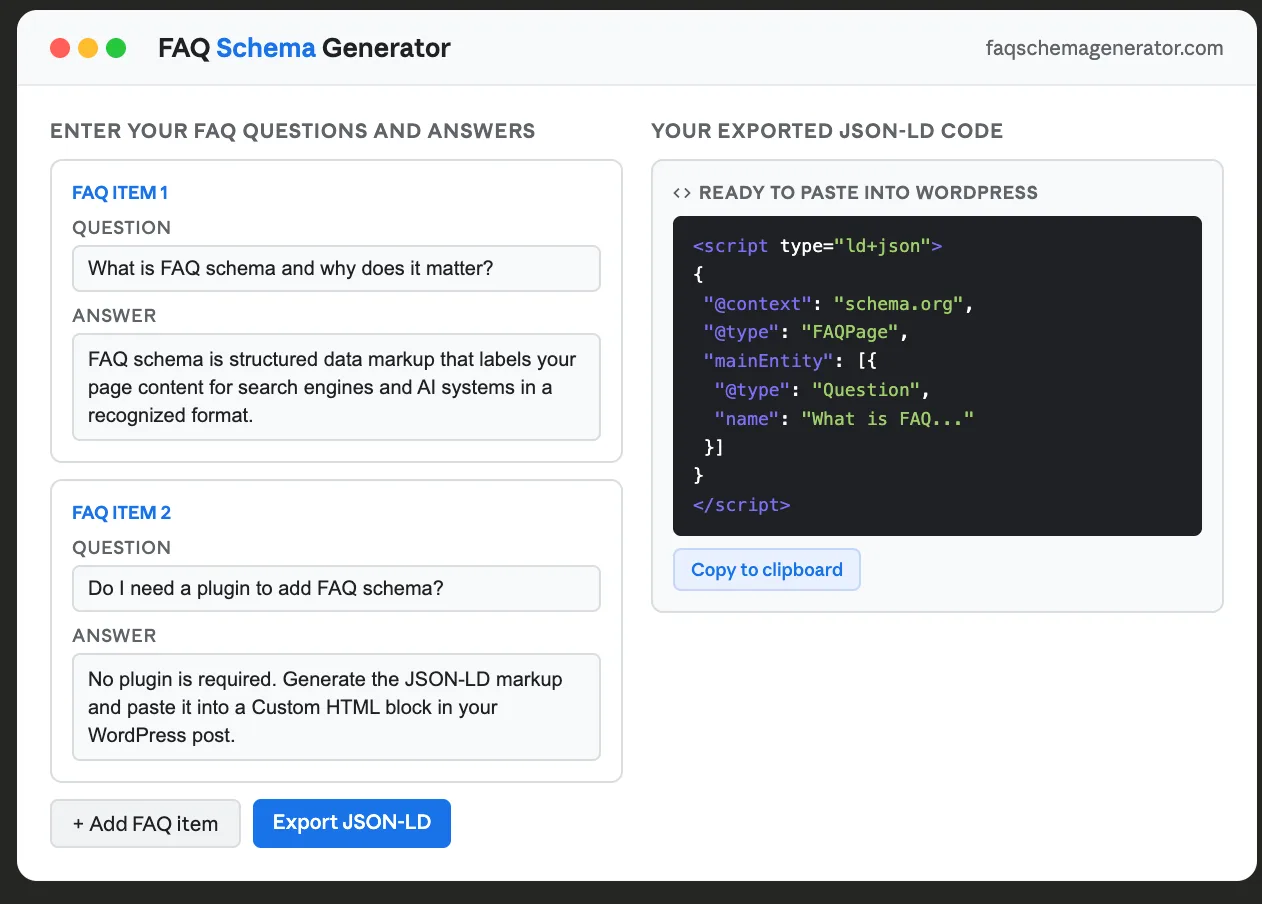
Most advice about adding FAQ schema to WordPress points you toward a plugin. Install this, configure that, pay for the pro version. But plugins add bloat, can conflict with your existing SEO tools, and often require you to redo your FAQ formatting every time you switch.
There is a simpler path. With a free FAQ schema generator and a basic understanding of where to paste the output, you can add valid FAQ structured data to any WordPress post in about five minutes, no plugin required.
Before diving into the steps, a quick note on timing: Google deprecated FAQ rich results in May 2026, meaning the expandable question dropdowns that used to appear in Google search listings are gone. If that makes you wonder whether this process is still worth doing, the short answer is yes, and the reasons are covered at the end of this article. The implementation process itself is unchanged.
Here's exactly how to do it.
What You're Actually Adding to Your Page
FAQ schema is a block of structured data code, written in a format called JSON-LD, that you add to your WordPress post's HTML. It labels your page content in a machine-readable format, telling search engines and AI systems that your page contains a list of questions and answers in a recognized Schema.org format.
The code itself is invisible to your site visitors. It lives in the background of your page and only communicates with search engine crawlers. Your page looks identical to readers, but to search engines and AI systems, it provides a standardized structural signal about your FAQ content.
What You'll Need
- A WordPress post or page with an FAQ section (or one you're about to create)
- Access to an FAQ schema generator tool
- The ability to add an HTML or Custom HTML block in WordPress, available in the Gutenberg block editor, Classic Editor, and most page builders
That's it. No plugins, no developer, no paid tools required.
Caution: Before adding a manual FAQ schema, check whether your SEO plugin or page builder is already generating it automatically. Yoast SEO and Rank Math both inject FAQ schema in certain configurations. Adding a second block of FAQ schema to the same page creates duplicate markup, which can cause conflicting signals and should be avoided.
Step 1: Write Your FAQ Questions and Answers
Start with the content itself. Your FAQ section should contain questions your readers are actually asking, written to genuinely help readers of your post.
This matters more now than it did before the deprecation. The thin, artificial FAQ sections that were added solely to trigger rich results are exactly what Google's 2023 restrictions and 2026 deprecation were intended to address. If your FAQ content is genuinely useful, the structured data markup serves a real purpose. If it isn't, the markup adds nothing, and the content wastes your readers' time.
Aim for three to eight questions per post. Each answer should be substantive, with a few sentences at a minimum. Write questions the way a real reader would ask them, not the way you'd stuff a keyword into a heading.
If your post already has an FAQ section, you're ready for the next step. If not, write your questions and answers in a simple text document before moving on.
Step 2: Generate Your FAQ Schema Code
With your questions and answers ready, open an FAQ schema generator. A good generator, like the free tool at faqschemagenerator.com, lets you either enter your questions and answers directly or import them from a formatted text file if you have several posts to process at once.
Enter each question and its corresponding answer into the tool. Once all your FAQs are entered, click the export or generate button. The tool will produce a block of JSON-LD code that looks something like this:
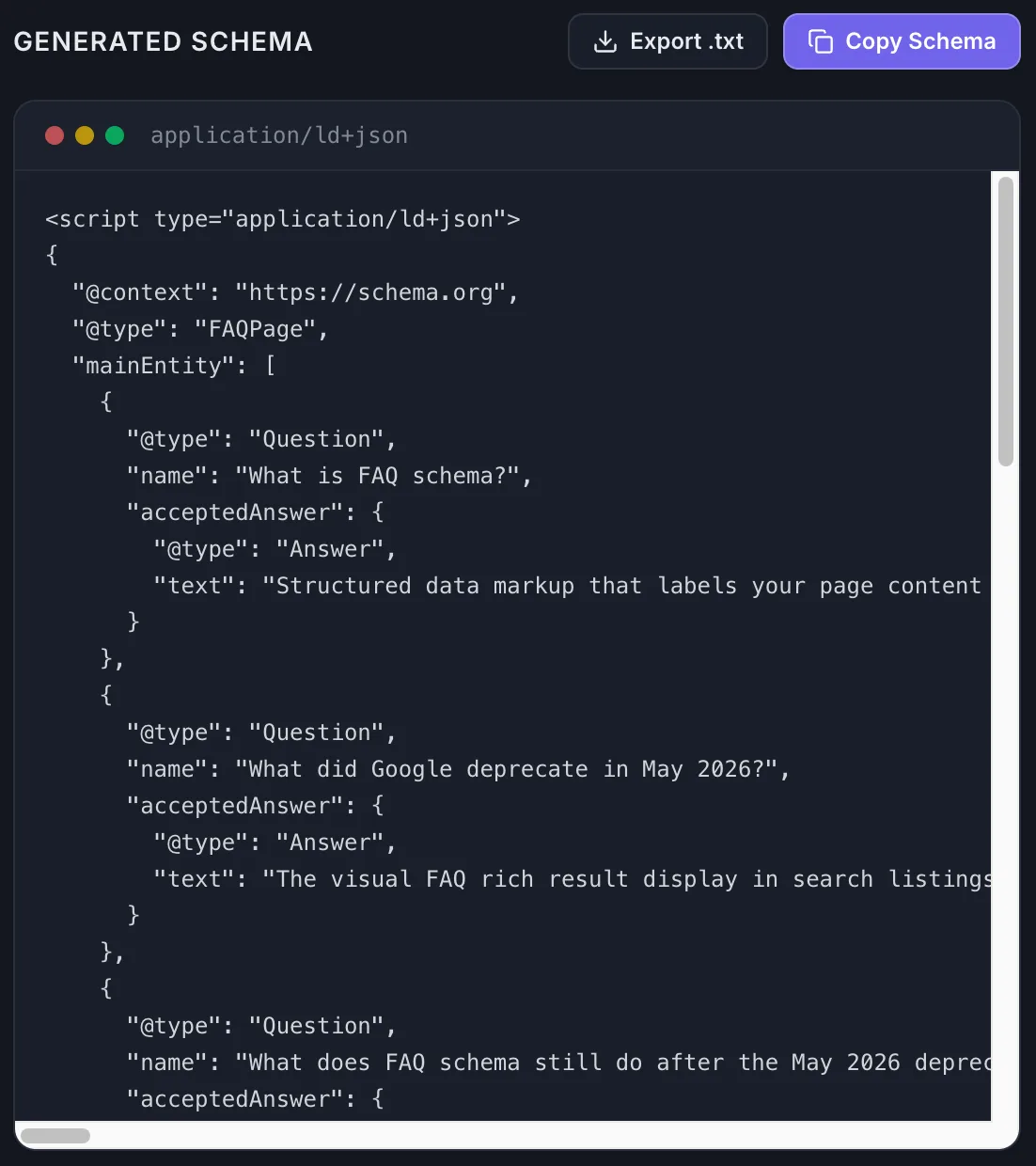
Copy this entire block of code from the tool you use. You'll paste it into your WordPress post in the next step.
Step 3: Add the Schema Code to Your WordPress Post
How you add the code depends on which WordPress editor you're using.
In the Gutenberg Block Editor (most common)
Open your post for editing. Scroll to the bottom of your content, after your visible FAQ section. Click the + button to add a new block, then search for "Custom HTML" and select it. Paste your copied JSON-LD code into the Custom HTML block. The block will show the raw code in the editor view, but it won't be visible to your readers on the published page.
In the Classic Editor
Open your post and switch from the Visual tab to the Text tab. This shows you the raw HTML of your post. Scroll to the very bottom of the content and paste your JSON-LD code there. Switch back to the Visual tab when done. The code won't appear in the visual view.
In Divi 5
Open your page or post in the Divi visual builder. Scroll to the bottom of your content, after your visible FAQ section. Click the + icon to add a new module, then search for "Code" and select the Code module. Paste your JSON-LD block directly into the code module's editor. The module displays the raw code in the builder but renders invisibly on the published page. Save and update the page when done.
In Elementor
Open your page or post in the Elementor editor. Scroll to the bottom of your layout, after your visible FAQ section. Click the + icon to add a new widget, then search for "HTML" and drag the HTML widget into place. Paste your JSON-LD block into the HTML widget's code field. The widget renders invisibly on the published page. Click Update to save.
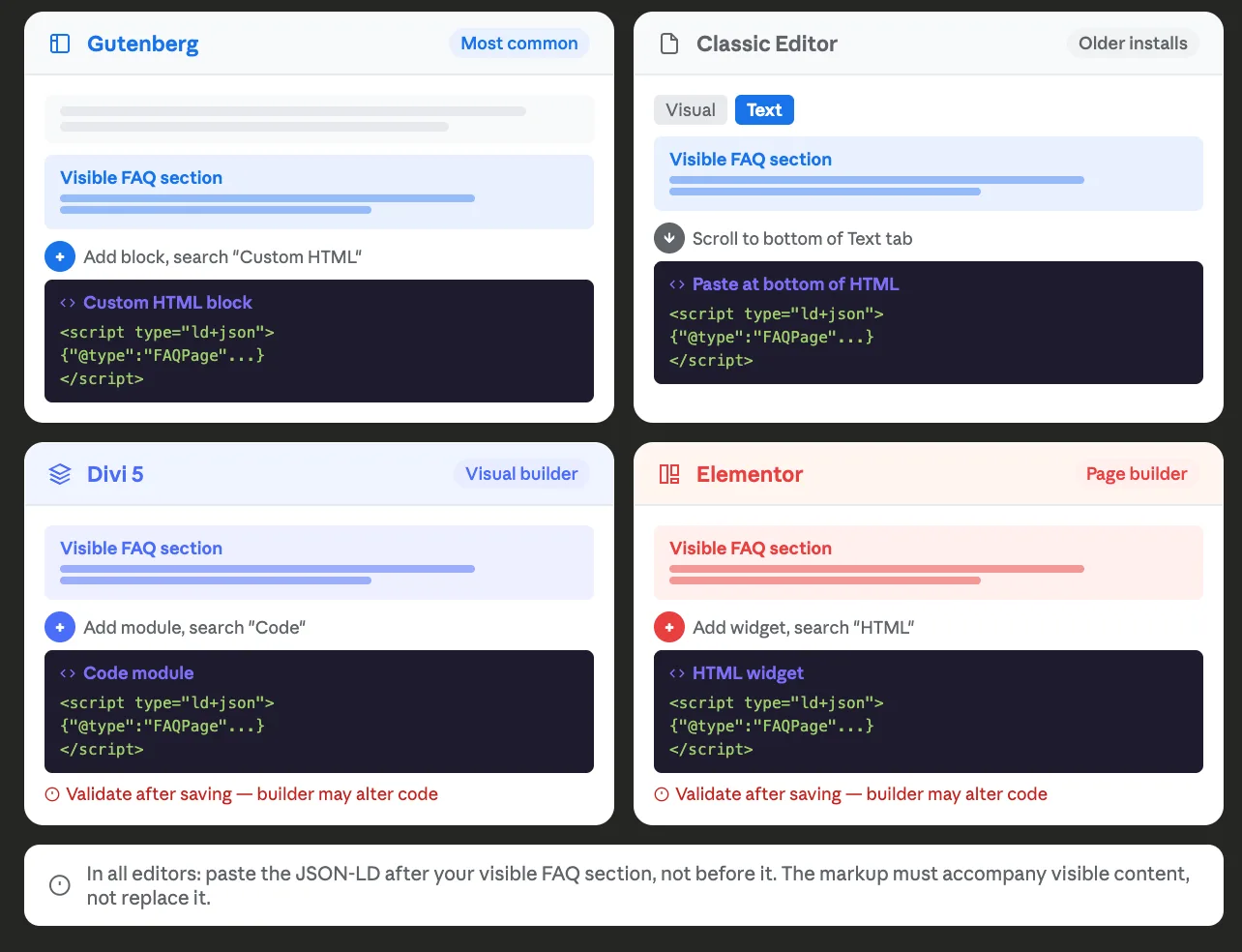
Important: Whichever editor you use, make sure the JSON-LD code block is added in addition to your visible FAQ section, not instead of it. Google's guidelines require that the questions and answers in your schema markup match content that's visible to users on the page. Hiding FAQs from readers while showing them to search engines violates those guidelines and can result in a manual penalty.
A note for Divi and Elementor users: both builders can occasionally add extra whitespace or alter characters when saving code modules, which may break your JSON-LD formatting. Always run your markup through the validation step in Step 4 after adding it in either builder to confirm it saved correctly.
Step 4: Validate Your Schema
Before publishing, run your page through Google's Rich Results Test to confirm your markup is valid and correctly formatted. You can do this in two ways:
- If the post is already published: Go to search.google.com/test/rich-results, enter your page URL, and run the test.
- If you haven't published yet: Use the "Test Code" option and paste your JSON-LD directly into the tool.
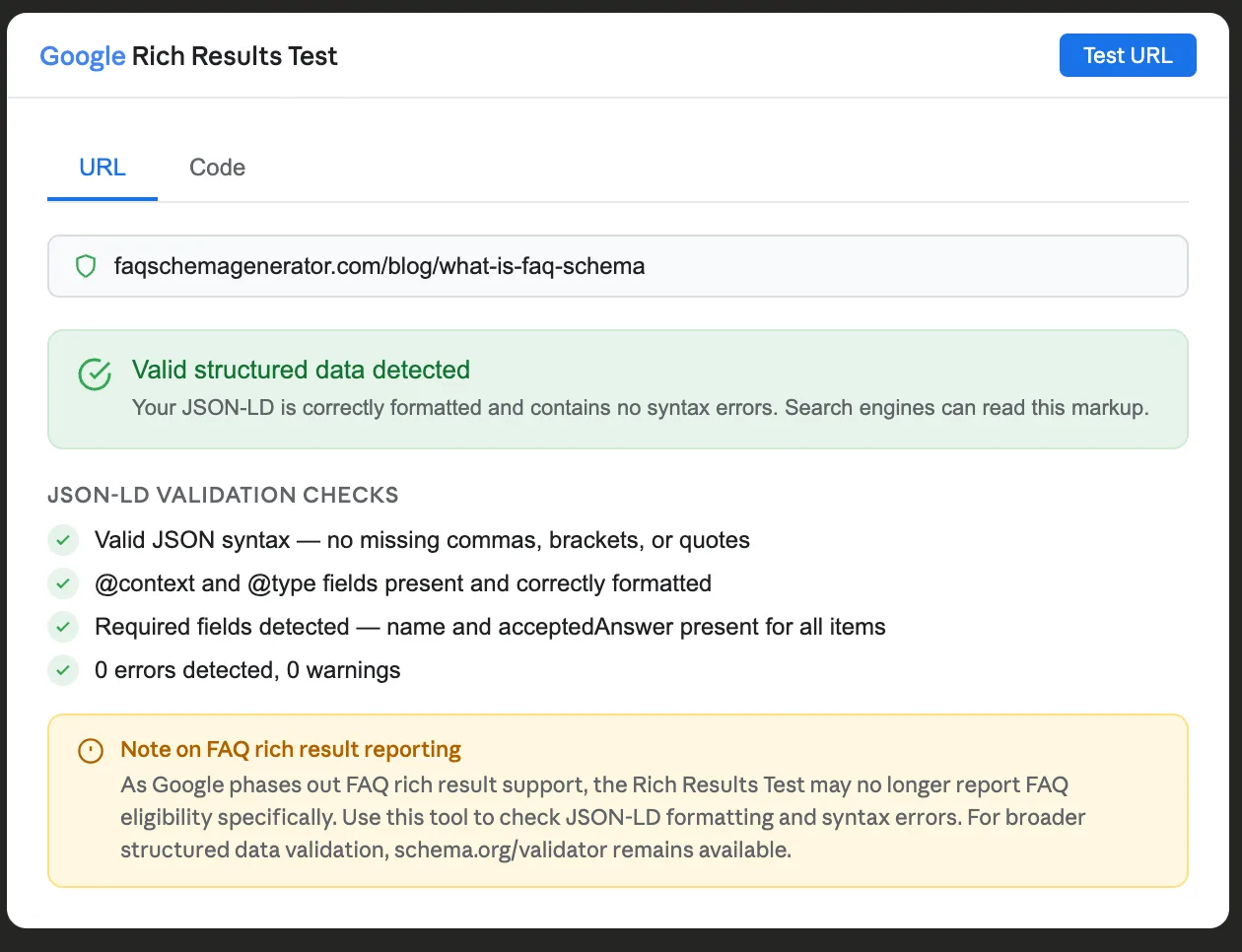
As Google phases out support for FAQ rich results, the Rich Results Test may no longer report FAQ eligibility specifically. However, the tool can still help identify general JSON-LD formatting and syntax errors. Run the test, fix any errors flagged, and you're good to publish.
Common issues include missing quotation marks, extra commas, or special characters in the text that need to be escaped. A good FAQ schema generator handles most of this automatically, but a quick validation check is always worth the two minutes it takes.
Step 5: Publish and Request Indexing
Once your post is published with the schema in place, you can speed up Google's recognition of your changes by submitting the URL for indexing in Google Search Console.
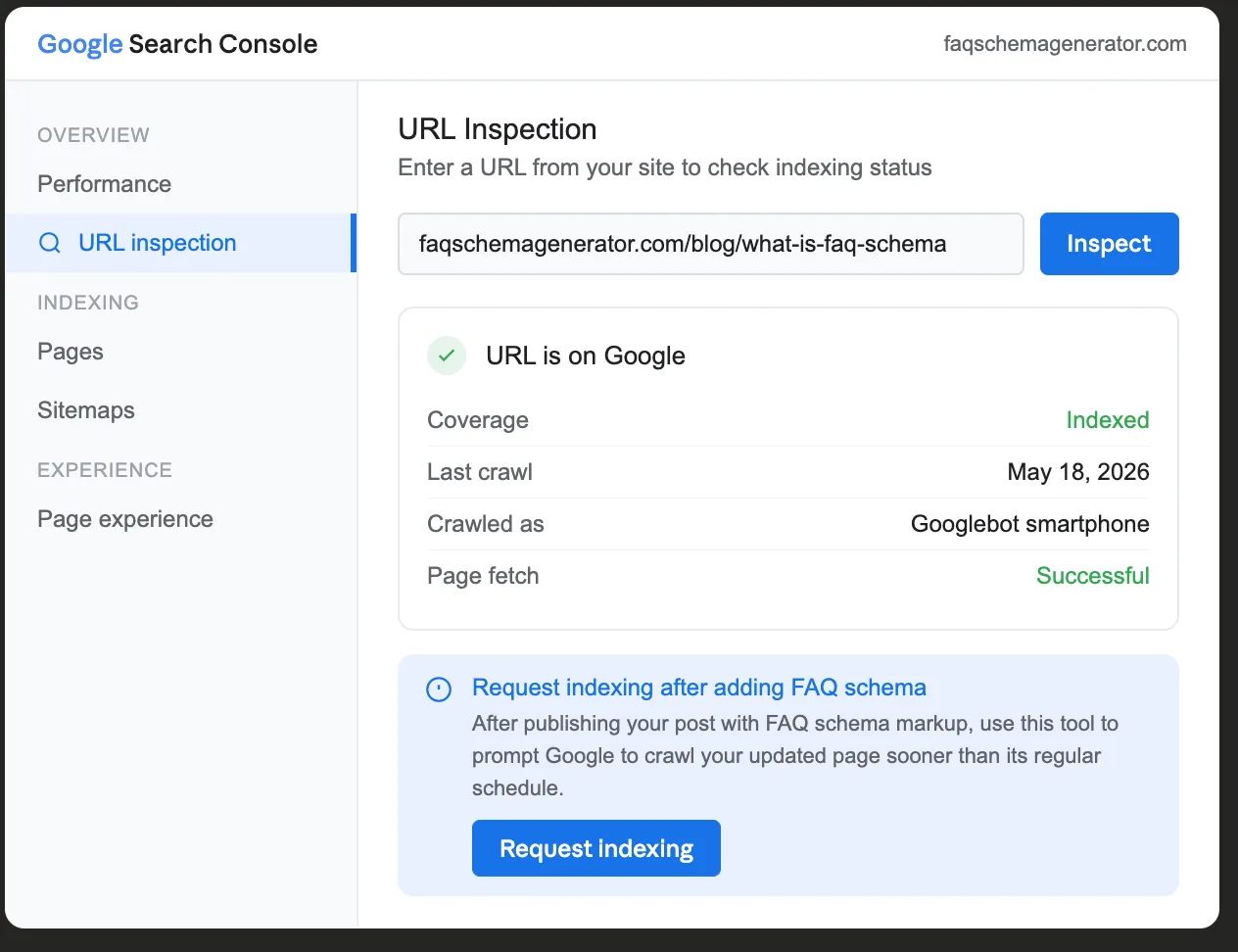
In Search Console, go to the URL Inspection tool, enter your post's URL, and click "Request Indexing." This prompts Google to crawl your updated page sooner than it might otherwise.
Handling Multiple Posts
If you want to add FAQ schema to several posts at once, doing it manually post by post can be time-consuming. An FAQ schema generator with a text file import feature lets you prepare all your questions and answers in a single formatted document, import them in one step, and export the schema code. This makes the process significantly faster across a large content library.
Common Mistakes to Avoid
Adding schema without visible FAQs. The questions and answers in your JSON-LD must match content that's visible on the page. If your FAQ section is hidden behind a toggle or accordion, make sure the text is still present in the HTML, collapsed visually if needed, and accessible to users.
Using irrelevant or thin questions. FAQs should relate directly to the post's topic and genuinely answer readers' questions. Adding generic questions to every post is against Google's guidelines and doesn't serve your readers.
Forgetting to update the schema when you update the post. If you change your FAQ answers, regenerate and replace the JSON-LD to keep the schema in sync with the visible content.
Adding duplicate schema. If you're already using an SEO plugin that generates FAQ schema (like Yoast or Rank Math), don't add a second FAQ schema block manually. Duplicate schema creates conflicting signals and should be avoided.
Is This Still Worth Doing After the May 2026 Deprecation?
Yes, with a realistic understanding of what the markup does now versus what it did before.
Google deprecated the visual display feature — the expandable FAQ dropdowns in search listings. It did not deprecate the FAQPage structured data type itself. The markup remains a valid Schema.org type. Google has not recommended removing valid FAQPage markup from pages containing genuine FAQ content, and the markup continues to be crawled by search engines and AI systems.
The practical value has shifted. FAQ schema no longer affects how your listing looks in Google search. It still helps search engines understand your content structure, may indirectly support visibility in AI-generated search summaries, and makes your FAQ content easier for AI systems to parse and potentially cite.
For WordPress bloggers publishing genuine, reader-focused FAQ content, the five-minute process described in this article remains worth doing. The display benefit is gone. The content comprehension and AI search benefits are not.